



How to Convert PNG to Vector in Illustrator Professional Guide
When you are working in the world of professional branding or embroidery, a blurry PNG is often your biggest enemy. These files are made of pixels, which means the moment you try to make them larger, they start to look fuzzy and unprofessional. Logos that look sharp on a phone screen become soft, jagged, and unusable the moment they are scaled up for a jacket back or printed on a large banner.
To get a high-quality result for embroidery, print, or commercial use, you need to convert those pixels into clean, scalable vector lines using Adobe Illustrator. This guide covers the complete process, from understanding why the conversion is necessary to choosing between the automated and manual approaches depending on your design complexity.
⚡ Quick Answer
How do you convert PNG to vector in Adobe Illustrator?
- Place the PNG file into Adobe Illustrator using File, Place
- Select the image and open the Image Trace panel from the Window menu
- Choose the appropriate preset and adjust threshold, noise, and path settings
- Click Expand to convert the trace into editable vector paths
- Clean up anchor points manually using the Direct Selection and Pen tools
- Save as AI, SVG, or EPS depending on the intended use
Understanding the Transition from Pixels to Paths
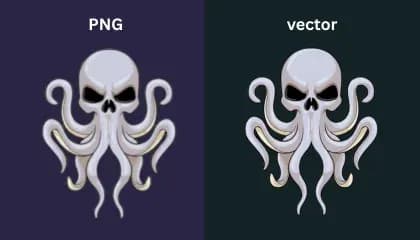
A PNG file is like a mosaic made of tiny colored squares. While it looks fine on a small screen, it lacks the mathematical data needed for a commercial embroidery machine or a large-scale printer to follow. Every time you scale a PNG up, the software has to guess what the missing pixels should look like, which is why the edges become soft and blurred.
Vector files work on a completely different principle. Instead of storing color information for individual pixels, a vector file stores mathematical equations that describe lines, curves, and shapes using anchor points and path directions. Because the lines are defined by math rather than pixels, they can be scaled to any size without any loss of sharpness.
| Property | PNG (Raster) | Vector (AI / SVG / EPS) |
|---|---|---|
| Built from | Grid of colored pixels | Mathematical paths and anchor points |
| Scales without quality loss | ✗ No; blurs when enlarged | ✓ Yes; infinitely scalable |
| Suitable for embroidery digitizing | ✗ Not directly | ✓ Yes; clean stitch paths |
| Suitable for large-format print | ✗ Limited by resolution | ✓ Any size without degradation |
| Edge quality | Soft, jagged at large sizes | Crisp, mathematically precise at any size |
| Editable in Illustrator | Limited; pixel editing only | Fully editable paths, colors, and shapes |
| File formats | PNG, JPEG, GIF, BMP | AI, SVG, EPS, PDF |
Why this matters for embroidery: An embroidery machine follows the vector path exactly. If the vector has a tiny wobble or an imprecise curve, the needle follows that wobble stitch by stitch across every garment in your production run. Clean vector paths are not just preferable; they are essential for production-grade embroidery files.
Step-by-Step: How to Convert PNG to Vector in Illustrator
1 Prepare Your PNG Before Importing
The quality of your vector output is directly tied to the quality of your PNG input. Before placing anything into Illustrator, check these four things:
- Resolution: Use 300 DPI or higher at the intended output size. Low-resolution PNGs trace with jagged, pixelated edges that are difficult to clean up.
- Background: Transparent background is preferred. White background is acceptable. Avoid complex gradients or photographic backgrounds.
- Color separation: Each color zone should be clearly defined with sharp, distinct boundaries between colors.
- Detail level: Remove or simplify fine details that cannot be reproduced at the output size, especially for embroidery use.
💡 Tip: If the client only has a low-resolution logo, ask for the original AI, EPS, or SVG file first. Using the original vector file skips the PNG conversion entirely and always produces cleaner results.
2 Place the PNG Into Illustrator
Open Adobe Illustrator and create a new document at the final output size of your design. Go to File, then Place, and select your PNG file. This embeds the image in the Illustrator artboard as a raster object. Do not simply open the PNG directly; using Place preserves the correct color profile and keeps the image editable separately from your vector paths.
Lock the placed PNG on its layer so it cannot move while you work over it. Create a new layer above it for your vector paths. This two-layer structure is essential for clean manual tracing work later.
✅ Name your layers clearly: "Reference PNG" for the bottom layer and "Vector Paths" for the working layer. This makes it easy to toggle the PNG reference on and off as you trace.
The Automated Route: Using Image Trace
3 Run Image Trace
Adobe Illustrator's Image Trace tool can handle simple conversions quickly. Select your placed PNG, then go to Window and open the Image Trace panel. Choose a preset that matches your artwork type:
| Preset | Best For |
|---|---|
| Black and White Logo | Simple single-color logos and silhouettes |
| 3 Colors | Simple multi-color logos with limited color count |
| 6 Colors | Standard corporate logos and brand marks |
| High Fidelity Photo | Complex photographic images requiring high detail |
| Silhouettes | Clean outline shapes with no internal detail |
For cleaner results, always open the Advanced settings and adjust:
- Threshold: Controls the boundary between black and white. Raise it to capture more of the design; lower it to reduce noise.
- Noise: Sets the minimum size of shapes that will be traced. Increase it to ignore small digital artifacts and background specks.
- Paths: Controls how closely the trace follows the original edges. Higher values produce more complex paths; lower values simplify and smooth.
- Corners: Determines how sharp corners are preserved. Raise it for logos with defined angular shapes.
Once you are satisfied with the live preview, click Expand in the top toolbar. This converts the Image Trace result into actual editable vector paths. The PNG reference is discarded and replaced by grouped vector shapes.
⚠️ After expanding, always ungroup the result (Object, Ungroup) and delete any unwanted background shapes before proceeding. Image Trace often creates hidden shapes beneath the visible design that add unnecessary anchor points.
The Professional Choice: Manual Tracing with the Pen Tool
4 Trace Manually Using the Pen Tool
While Image Trace is fast, it often rounds off corners that should be sharp or misses tiny details in text and fine artwork. Automated tracing cannot distinguish between an intentional design feature and a JPEG compression artifact; it traces everything it sees. This is why professional shops often prefer manual tracing using the Pen Tool for any logo that will be used in embroidery, screen printing, or commercial branding.
By redrawing the logo by hand over the locked reference PNG, you ensure that every curve is intentional and every line is perfectly straight. You have full control over where anchor points are placed and can create cleaner, simpler paths than Image Trace ever produces automatically.
Pen Tool manual tracing process:
- Select the Pen Tool (P) and begin placing anchor points along the edges of each design element
- Use as few anchor points as possible; clean paths use 4 to 8 points per curve, not 40
- Use the Convert Anchor Point Tool to adjust curve handles precisely after placing points
- Trace each color zone as a separate closed shape on its own layer or sublayer
- Fill each shape with the appropriate flat color once the path is complete
- Turn off the reference PNG layer to review the vector result in isolation before finalizing
Why manual tracing matters for embroidery: At Sassy Digitizing, manual vector cleanup is a required step before any file moves into the digitizing stage. An embroidery machine follows the vector path exactly. If the vector has a tiny wobble or an unnecessary anchor point that creates a micro-curve, the needle follows that wobble stitch by stitch across every garment in the production run. Taking the time to refine anchor points in Illustrator is what separates a basic design from a premium finished product.
💡 Anchor point rule: Every anchor point that exists in a vector path adds a potential wobble in the embroidery stitch line. Use the minimum number of points necessary to define each shape accurately. A straight line between two corners needs exactly two anchor points, not six.
5 Clean Up and Export Your Vector File
Whether you used Image Trace or manual tracing, every vector file needs a cleanup pass before it is ready for embroidery digitizing or print use. This is where the final quality is established.
Cleanup checklist:
- Remove all stray points and orphaned anchor nodes using Select, Same, Fill Color to find isolated pieces
- Simplify complex paths using Object, Path, Simplify to reduce unnecessary anchor point density
- Check for open paths using View, Outline mode; open paths should be closed or removed
- Convert all text to outlines if the design contains type (Type, Create Outlines)
- Assign flat colors to all shapes; remove any gradients, effects, or transparencies
- Expand all strokes to filled shapes if the design will be used for embroidery
Choosing the right export format:
| Format | Best Use | Notes |
|---|---|---|
| AI | Editing and archiving in Illustrator | Native format; preserves all layers and editability |
| SVG | Web use, sharing, and digitizing software import | Open format; widely supported for digitizing workflows |
| EPS | Print production and embroidery pre-processing | Industry standard for print shops; excellent compatibility |
| Client approval and document sharing | Preserves visual appearance; less suited for further editing |
Image Trace vs. Manual Tracing: Which Should You Use?
| Situation | Image Trace | Manual Pen Tool |
|---|---|---|
| Simple geometric logo, few colors | ✓ Suitable with cleanup | Optional for precision |
| Complex logo with fine detail and text | ✗ Misses detail | ✓ Required |
| File going to embroidery digitizing | ✗ Too many stray points | ✓ Clean paths required |
| Quick preview or client approval draft | ✓ Fast for approvals | Overkill for draft stage |
| File for large-format print production | ⚠ Cleanup needed | ✓ Preferred |
| Source PNG is low resolution (under 150 DPI) | ✗ Poor trace quality | ✓ Compensates for low-res source |
Common Mistakes When Converting PNG to Vector
✗ Tracing a low-resolution PNG and accepting the result
A 72 DPI web screenshot traces with blocky, pixelated edges that require more cleanup time than starting from scratch. Always request a higher-resolution source before beginning any tracing work.
✗ Skipping anchor point cleanup after Image Trace
Image Trace outputs paths with hundreds of unnecessary anchor points. An expanded trace is not a finished vector; it is raw material that requires simplification and manual refinement before it is ready for any production use.
✗ Leaving strokes as strokes instead of expanding them
Strokes in Illustrator are defined by a center path with a width applied. Embroidery digitizing software reads the outline of each shape; a stroke path imports as a thin line rather than a filled shape. Always expand strokes to outlined fills before sending a file to digitizing.
✗ Using gradients in a file intended for embroidery
Embroidery thread cannot reproduce gradients. A vector file with gradient fills must be converted to flat color zones before digitizing. Gradients that are carried into the digitizing software are either ignored or converted into stepped flat colors that bear no resemblance to the original design intent.
✗ Not converting text to outlines
Text in Illustrator depends on the font being installed on the system. When a file is opened on a machine without the font, the text reverts to a default substitute and the design changes. Always convert all text to outlines (Type, Create Outlines) before sharing or sending the file for production use.
Summary
Converting PNG to vector in Illustrator requires either the automated Image Trace tool for simple designs or the manual Pen Tool approach for complex logos, embroidery files, and commercial print production. In both cases, the trace output must be cleaned up and simplified before the file is ready for professional use.
| ✅ | Source quality: Always start with 300 DPI or higher; request original AI or EPS if available |
| ✅ | Tracing method: Image Trace for simple shapes; manual Pen Tool for complex logos and embroidery files |
| ✅ | Cleanup: Simplify paths; remove stray points; expand strokes; convert text to outlines |
| ✅ | Colors: Flat fills only; no gradients or effects for embroidery use |
| ✅ | Export: AI for editing; SVG for digitizing import; EPS for print production |
Frequently Asked Questions (FAQs)
Need a Clean Vector File From Your PNG?
Sassy Digitizing provides professional vector conversion services with manual anchor point cleanup, flat color separation, and production-ready output for embroidery digitizing and commercial print workflows.
Fast turnaround with free revisions until you are completely satisfied.
Keith Blair
Senior Quality Control (HOD)
As the Head of Quality Control at Sassy Digitizing, Keith brings over 12 years of hands-on commercial embroidery experience to the table. He is our resident problem-solver, specializing in the technical nuances of stitch density, pull compensation, and complex digitizing. When he's not establishing quality standards for 3D puff and appliqué, you'll find him perfecting the art of small lettering to ensure every stitch counts.
Expertise:
Related Articles
Knockdown Tackdown Stitch Embroidery: The Complete Guide
Knockdown tackdown stitch embroidery is the layer most digitizers skip and the one that matters most on fleece, terry cl…

Best Embroidery Digitizing Service 2026 | Sassy Digitizing
Scale your apparel brand or embroidery shop with the best embroidery digitizing service of 2026. Sassy Digitizing comple…

Best Embroidery Digitizing Settings for Hats and Caps
Stop ruining structured hats with flat sew files. Discover the essential digitizing secrets for curved 3D surfaces inclu…