




How to Convert PNG to PES for Embroidery: The Complete Guide (2026 Update)
Every day, embroiderers upload a PNG logo expecting a clean stitch-out, and every day, their machine either rejects the file or produces a tangled mess of thread. The reason is always the same: a PNG is not a stitch file. It is a picture. Your embroidery machine does not read pictures; it reads instructions.
Converting PNG to PES for embroidery is not a file rename. It is a skilled technical process called digitizing, and when done correctly, it transforms a flat image into a machine-ready stitch file with clean thread paths, proper density, and zero thread breaks. This guide covers every step of that process, from the software you need to the most common mistakes that ruin production runs.
⚡ Quick Answer
How do you convert PNG to PES for embroidery?
- Clean and prepare your PNG at 300 DPI minimum
- Vectorize the PNG to SVG using Inkscape or Adobe Illustrator
- Import SVG into digitizing software such as Wilcom, Hatch, or Brother PE Design
- Assign satin stitch, fill stitch, underlay, and run compensation settings manually
- Export as Brother (*.PES) and test sew-out on scrap fabric before production
What Is PNG vs PES? The Core Difference Every Embroiderer Must Understand
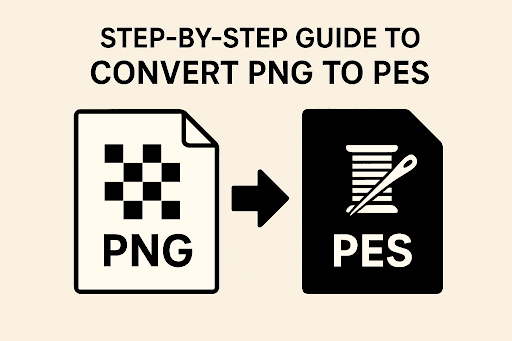
Before touching any software, you need to understand why these two formats are completely incompatible at the machine level. A PNG and a PES file exist in entirely different technical universes.
| Property | PNG File | PES Embroidery File |
|---|---|---|
| File type | Raster image (pixel grid) | Stitch data (XY coordinate set) |
| Machine readable | ✗ No | ✓ Yes |
| Contains needle path | ✗ No | ✓ Yes |
| Thread color stops | ✗ No | ✓ Yes |
| Stitch density control | ✗ No | ✓ Yes |
| Pull compensation | ✗ No | ✓ Yes |
| Underlay data | ✗ No | ✓ Yes |
| Trim commands | ✗ No | ✓ Yes |
| Compatible machines | Screens, printers, web | Brother, Babylock, Bernina |
The PES embroidery file format is proprietary to Brother Industries. It packages thousands of individual stitch coordinates, color change instructions, and trim commands into a binary file that the machine reads sequentially. A PNG has none of this. Renaming a PNG to .pes does nothing, because the machine reads the binary data structure, not the file extension.
Why PNG Cannot Directly Convert to PES (And Why Auto-Converters Fail)
Online tools that promise instant PNG to PES conversion are not digitizing your file. They are auto-tracing the pixel shapes and generating random stitch paths with no understanding of fabric behavior, thread tension, or stitch type logic.
Here is what auto-converters cannot do, and why it matters:
- They cannot set pull compensation. Every stitch pulls fabric inward. Without compensation, columns stitch narrower than designed. Auto-converters ignore this entirely.
- They cannot assign correct stitch types. A satin stitch on a 12mm wide fill area will split and sag. Auto-converters use one stitch type for everything, producing inconsistent results.
- They cannot add underlay stitches. Underlay is the hidden foundation that locks fabric and prevents top stitches from sinking or puckering. No auto-converter builds proper underlay.
- They cannot optimize thread path sequence. Poorly sequenced stitch paths cause the needle to jump constantly across the hoop, increasing thread breaks and production time.
- They cannot handle low-resolution source images. A 72 DPI screenshot converted to stitch data produces jagged, unclean edges that look nothing like the original logo.
⚠️ Professional digitizer warning: Free online converters produce files that look acceptable in software preview but fail on fabric. Do not use them for client work, uniform production, or any commercial application. The garment cost will always exceed the digitizing fee you were trying to avoid.
Step-by-Step: How to Convert PNG to PES for Embroidery (Professional Workflow)
1 Prepare and Clean Your PNG File
The quality of your source PNG directly determines the quality of your digitized output. A blurry, low-resolution, or cluttered PNG produces a messy vector trace, which produces messy stitches.
- Minimum resolution: 300 DPI at the intended output size
- Background: Transparent preferred; white is acceptable; avoid dark or noisy backgrounds
- Color separation: Each distinct color should be a clearly separate zone with no gradients or blending
- Detail check: Strokes thinner than 1.5mm at output size cannot be stitched reliably; remove or thicken them
- Format: PNG with transparency is ideal; avoid JPEG, which adds compression artifacts that confuse vectorization
💡 Tip: If the client only has a low-resolution logo, request the original file from their designer. A proper AI, EPS, or SVG source skips the vectorization step entirely and gives you cleaner results.
2 Vectorize the PNG: Convert to SVG or EPS
Digitizing software works with vector shapes, not pixel grids. You must convert your PNG to a scalable vector format before importing into any embroidery software.
How to vectorize in Adobe Illustrator:
- Place the PNG in Illustrator and select it
- Go to Object, Image Trace, and Make
- Open the Image Trace panel and set mode to "Color" with 6 or fewer colors
- Click Expand to convert the trace to editable paths
- Use Direct Selection to clean up stray anchor points and simplify paths
- Export as SVG or EPS
How to vectorize in Inkscape (free):
- Import the PNG into Inkscape
- Go to Path, Trace Bitmap
- Select "Colors" mode and set the number of scans to match your color count
- Click OK and delete the original PNG underneath
- Use the Node editor to clean up the paths
- Save as Plain SVG
⚠️ Warning: Never skip manual path cleanup. Auto-traced vectors always contain stray points, overlapping shapes, and open paths. These translate directly into broken stitches and missed fills in your embroidery output.
3 Import Into Digitizing Software and Assign Stitch Types
This is the actual digitizing step. Import your cleaned SVG into your chosen embroidery software and manually assign stitch types to each element. This step cannot be automated correctly.
| Design Element | Stitch Type | Settings |
|---|---|---|
| Text and narrow borders (under 6mm) | Satin stitch | Density 0.4mm to 0.5mm; pull comp 0.4mm to 0.8mm |
| Large filled areas and wide strokes | Tatami fill stitch | Row spacing 0.4mm; angle 45 degrees |
| Travel paths, detail edges, connectors | Running stitch | Length 2mm to 2.5mm |
| All elements, below the top layer | Underlay stitches | Center run for narrow; zigzag for wide fills |
Set your design dimensions to match your hoop before beginning. Resizing after digitizing distorts stitch density and invalidates all compensation settings. Common hoop sizes are 4x4, 5x7, and 6x10 inches for most Brother machines.
4 Configure Pull Compensation, Density, and Thread Sequence
These are the settings that separate professional stitch files from amateur ones. Get them right and your design runs clean. Get them wrong and you will be re-hooping and troubleshooting all day.
| Setting | Recommended Value |
|---|---|
| Pull Compensation (woven) | 0.4mm to 0.8mm |
| Pull Compensation (knit/stretch) | 1.0mm to 1.2mm |
| Satin stitch density | 0.4mm to 0.5mm row spacing |
| Fill stitch row spacing | 0.4mm to 0.45mm |
| Fill stitch angle | 45 degrees default; alternate per element |
| Thread sequence | Complete each color zone before moving to next color |
| Edge padding (fill areas) | 0.3mm to 0.5mm to reach the outline cleanly |
5 Export as PES and Run Your Test Sew-Out
Once all stitch types, compensation values, and thread sequences are set, export the finished file as a PES embroidery file.
- Navigate to File, then Export or Save As
- Select Brother (*.PES) from the format list; use PES v6 for widest machine compatibility
- Load the file onto your machine via USB stick or SD card
- Sew on scrap fabric first, matching the fabric type and stabilizer you will use in production
- Measure the sew-out against the original design; check edges, color placement, and density
- Make adjustments and re-export until the sew-out is production-clean
✅ Non-negotiable: Always test sew before production. A 5-minute test sew-out on scrap is far cheaper than a ruined batch of embroidered polos or caps.
Best Software for Converting PNG to PES: Full Comparison
Choosing the right digitizing software is the most important decision in this workflow. Here is how every major option compares for PNG to PES conversion.
Wilcom Embroidery Studio
The industry standard for commercial production digitizing. Wilcom offers the most precise pull compensation engine, underlay builder, and stitch optimizer available. Used by professional digitizing services worldwide, including Sassy Digitizing, for every production file.
Hatch Embroidery
Built on the Wilcom engine and designed for hobbyists, small shops, and growing embroidery businesses. The Hatch embroidery software guide for PES conversion is one of the most accessible for new digitizers. Offers good stitch type control and solid PES export, with a lower learning curve than Wilcom.
Brother PE Design
Brother's native digitizing software, tightly optimized for Brother machine formats. This Brother PES file guide software offers strong PES export fidelity, direct machine connectivity, and built-in design tools. Ideal for users who run Brother-only machine setups and want native format reliability.
Ink/Stitch (Free Option)
Ink/Stitch PNG to PES is a free Inkscape extension that gives beginners access to basic digitizing tools. It can produce usable stitch files for simple shapes and designs. However, it lacks the pull compensation precision, underlay logic, and stitch optimization of paid software. Use it to learn digitizing concepts, not for commercial production files.
Common Mistakes When Converting PNG to PES (And How to Avoid Them)
These are the mistakes that generate the most support tickets, ruined garments, and client complaints in embroidery production:
✗ Mistake 1: Using a low-resolution PNG
What happens: Pixelated edges survive through vectorization into the stitch file, producing uneven column edges and misaligned fills. Fix: Always use 300 DPI or higher. Request the original file from the client if needed.
✗ Mistake 2: Relying on auto-conversion tools
What happens: The resulting file has random stitch types, zero underlay, no pull compensation, and no thread path logic. It may preview fine but will stitch poorly on fabric every time. Fix: Digitize manually or hire a professional digitizing service.
✗ Mistake 3: Wrong stitch density for the fabric
What happens: Too-tight density causes fabric puckering and needle breakage. Too-loose density creates gaps in coverage and weak design edges. Fix: Set density based on fabric type; lighter fabrics need lower density, denser materials can support tighter stitch spacing.
✗ Mistake 4: Ignoring pull compensation
What happens: Columns stitch narrower than designed, gaps appear between color zones, and the design looks smaller than expected on fabric. Fix: Set pull compensation per element based on fabric type; 0.4mm to 0.8mm for wovens, 1.0mm or more for knits.
✗ Mistake 5: Skipping underlay stitches
What happens: Top stitches sink into fabric pile, designs pucker on knits, and fill areas shift position. Fix: Add center-run underlay for satin columns and edge-walk or zigzag underlay for fill areas. Never skip underlay on any design.
✗ Mistake 6: Color mismatch from PNG to thread
What happens: The PNG shows RGB colors that do not exist in thread form. Clients expect an exact match that is physically impossible. Fix: Use a Pantone-to-thread conversion chart and inform clients upfront that thread color is a closest-match approximation, not an exact digital reproduction.
✗ Mistake 7: Resizing the PES file after digitizing
What happens: Scaling a finished PES up or down changes the stitch density without recalculating compensation values. The result is either over-dense or under-dense stitching. Fix: Always set the final output size before starting digitizing. Re-digitize for sizes that differ by more than 15 percent.
Troubleshooting: PNG to PES Problems and Solutions
| Problem | Most Likely Cause | Fix |
|---|---|---|
| Machine will not open PES file | Wrong PES version for the machine model | Re-export as PES v4 or v6; check machine manual for supported version |
| Thread breaking constantly | Stitch density too high; poor thread path sequencing; wrong needle size | Reduce density; optimize jump sequence; use correct needle for fabric weight |
| Design looks smaller on fabric than in software | Pull compensation set too low or not set at all | Increase pull compensation; re-test on same fabric type |
| Fabric puckering around design | Density too high; wrong stabilizer; missing underlay | Reduce density; change to cut-away stabilizer; add underlay layer |
| Gaps between color zones | Insufficient edge padding; pull compensation too low | Increase edge padding to 0.4mm to 0.5mm; raise pull compensation |
| Design distorted or misaligned on fabric | Loose hoop tension; wrong stabilizer for fabric type | Re-hoop drum-tight; use cut-away stabilizer for stretch fabrics |
| Uneven column edges or jagged fill | Pixelated vector source from low-res PNG trace | Return to vector stage; clean up paths manually; re-digitize |
| Colors stitching in wrong order | Thread sequence not organized by color zone | Reorder stitching sequence so each color completes before the next begins |
Pro Tips: Expert-Level PNG to PES Workflow Advice
- Always request the original artwork file first. If the client has an AI, EPS, or SVG source file, use it directly in your digitizing software. This eliminates the PNG vectorization step entirely and produces significantly cleaner stitch paths.
- Simplify before digitizing, not after. Design simplification is most effective at the vector stage, before any stitches are assigned. Remove details that will not hold at your output size. Strokes under 1.5mm and text under 4mm high are generally not readable in embroidery.
- Alternate fill stitch angles between adjacent elements. If two fill areas sit next to each other, set them at different angles (45 degrees and 135 degrees, for example). This breaks up the repetitive texture and gives the design a more refined, professional appearance.
- Build a fabric-specific settings library. Keep a reference document with your proven pull compensation, density, and underlay settings for each fabric type you regularly work with. Polo cotton, fleece, caps, and canvas all behave differently and need different base settings.
- Test on the exact fabric before production. Fabric behavior varies significantly by brand, weight, and weave structure, even within the same fabric category. A setting that works perfectly on one polo may not work on another. Always test on the actual garment batch when possible.
- Keep your PES version set to v6 unless the client specifies otherwise. PES v6 is supported by the widest range of Brother and Babylock machines. Newer machines support v10 for extra features, but v6 files run on both old and new models without compatibility issues.
- Aim for 6 thread colors or fewer on left chest logos. Every color stop costs production time. Reducing unnecessary color splits without compromising the design keeps production efficient and reduces error points.
Summary: The Complete PNG to PES Conversion Checklist
| ✅ | Step 1: Source a 300 DPI or higher PNG with clean, separated colors |
| ✅ | Step 2: Vectorize in Inkscape or Illustrator; clean up all paths manually |
| ✅ | Step 3: Import SVG into Wilcom, Hatch, PE Design, or Ink/Stitch |
| ✅ | Step 4: Assign satin stitch, fill stitch, running stitch, and underlay per element |
| ✅ | Step 5: Set pull compensation, stitch density, edge padding, and thread sequence |
| ✅ | Step 6: Export as Brother PES v6; test sew on matching scrap fabric |
| ✅ | Step 7: Adjust, re-export, and confirm production readiness before the full run |
Frequently Asked Questions (FAQs)
Conclusion
Converting PNG to PES for embroidery is a five-stage technical process that requires clean source artwork, proper vectorization, skilled stitch assignment, correct compensation settings, and mandatory sew-out testing. There is no shortcut, no rename trick, and no auto-converter that produces reliable production results.
For hobbyists and learners, Ink/Stitch and Hatch are solid starting points. For commercial production where garment quality and production efficiency are non-negotiable, professional manual digitizing using Wilcom is the only option that consistently delivers machine-ready files.
If you need a production-ready PES file from a PNG logo without the learning curve, the software cost, or the trial-and-error testing, the Sassy Digitizing team handles the entire process manually and delivers your file in 4 to 12 hours.
Need a Production-Ready PES File From Your PNG?
At Sassy Digitizing, our expert team manually digitizes every design using Wilcom. No auto-digitizing shortcuts. No guesswork. Clean stitch paths, correct pull compensation, optimized thread sequencing, and production-ready PES files every time.
Upload your PNG and receive your PES file in as little as 4 hours.
Keith Blair
Senior Quality Control (HOD)
As the Head of Quality Control at Sassy Digitizing, Keith brings over 12 years of hands-on commercial embroidery experience to the table. He is our resident problem-solver, specializing in the technical nuances of stitch density, pull compensation, and complex digitizing. When he's not establishing quality standards for 3D puff and appliqué, you'll find him perfecting the art of small lettering to ensure every stitch counts.
Expertise:
Related Articles
Knockdown Tackdown Stitch Embroidery: The Complete Guide
Knockdown tackdown stitch embroidery is the layer most digitizers skip and the one that matters most on fleece, terry cl…

Best Embroidery Digitizing Service 2026 | Sassy Digitizing
Scale your apparel brand or embroidery shop with the best embroidery digitizing service of 2026. Sassy Digitizing comple…
Best Embroidery Digitizing Settings for Hats and Caps
Stop ruining structured hats with flat sew files. Discover the essential digitizing secrets for curved 3D surfaces inclu…