




How to Convert PNG to PES for Embroidery The Complete Guide 2026
When you convert a PNG image to a PES file, you are translating a flat picture into a language. Your embroidery machine needs this specific language to work. This professional process is called digitizing. It acts as the essential bridge between a digital design and a physical product.
If you simply save a PNG as a stitch file, your machine will not understand it. Therefore, you need a proper conversion process. In this guide, we break down exactly how to convert your logo into a high-quality PES file for Brother and Babylock machines.
What Is the PNG File Format?
A PNG (Portable Network Graphics) is a raster image format. It is very popular because it supports transparent backgrounds. Consequently, it is perfect for logos, icons, and web graphics.
However, PNG files are made of pixels, which are tiny colored dots. Embroidery machines cannot read these dots directly. Instead, they need specific instructions on where to move the needle. This is why a standard image file cannot be used for stitching without conversion.
What Is the PES File Format?
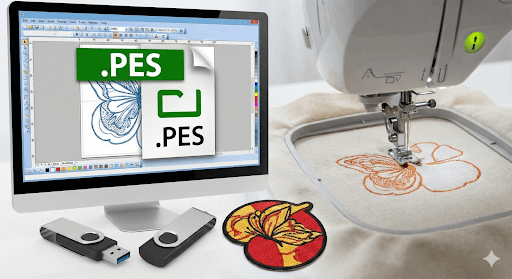
A PES file is a specialized stitch data format. It is designed specifically for Brother, Babylock, and Bernina home embroidery machines. Unlike a simple PNG, a PES file contains complex data including:
X and Y Coordinates: These tell the needle exactly where to move.
Stop Commands: These signal the machine when to change thread colors.
Trim Commands: These tell the machine when to cut the thread.
Step 1: Prepare Your Artwork (PNG to Vector)
Before you can digitize, you often need a clean outline. Raster images like PNGs can be pixelated. This often confuses the digitizing software. Therefore, the first step is to create a “Vector” version of your art.
You can use Adobe Illustrator or Inkscape for this task. Use the “Image Trace” feature to turn your pixels into smooth lines. This ensures your final embroidery has sharp and crisp edges. Clean artwork is the secret to a professional finish.
Step 2: Import Into Professional Software
You cannot just click “Save As” PES in Photoshop. You must use dedicated embroidery software. Industry leaders often use Wilcom Embroidery Studio or Hatch Embroidery.
First, import your new Vector file into the software. Next, ensure the design size matches your machine hoop, such as a 4×4 or 5×7 inch area. Correct sizing at this stage prevents distortion during the actual stitching process.
Step 3: Assign Specific Stitch Types
This is the most critical stage of the process. You must tell the software exactly how to sew each part of the design.
Satin Stitches: Use these for borders and small text.
Tatami Fill Stitches: Use these for larger colored areas.
Underlay Stitches: Always add underlay as a foundation.
If you skip the underlay, your fabric might bunch up. This foundation keeps the design stable on the garment.
Step 4: Export and Test Your PES File
Once you finish the manual digitizing, you are ready to export. Go to the file menu and select “Export” or “Save As.” Choose the Brother (.PES) format from the list.
However, your job is not done yet. Always run a test stitch on scrap fabric before using your final garment. This allows you to check the tension and density of the stitches.
Conclusion: DIY vs Professional Quality
Converting PNG to PES is a true art form. While free tools are available for beginners, complex logos require a human touch. Automated tools often create messy results that can damage your machine.
If you want a flawless result, trust the experts. Sassy Digitizing is proud to be ranked among the Top 10 Best Embroidery Digitizing Companies in the World. We specialize in manual precision that machines simply cannot match.
Need a machine-ready PES file today? Simply upload your PNG to Sassy Digitizing. Our expert team will manually digitize your design and test it for quality. We deliver perfect, production-ready files in under 4 hours.
Frequently Asked Questions (FAQs)
Can I use a PNG file directly on my Brother machine?
No. You must convert the PNG to a PES file using digitizing software before the machine can read it.Why does my converted PES file look messy?
This usually happens due to auto-digitizing. Manual digitizing is necessary to ensure proper stitch paths and density.What is the best software for PNG to PES conversion?
Wilcom and Hatch are the industry standards for professional results.How long does it take to get a professional PES file?
At Sassy Digitizing, we provide high-quality PES files within 2 to 4 hours.
Keith Blair
Senior Quality Control (HOD)
As the Head of Quality Control at Sassy Digitizing, Keith brings over 12 years of hands-on commercial embroidery experience to the table. He is our resident problem-solver, specializing in the technical nuances of stitch density, pull compensation, and complex digitizing. When he's not establishing quality standards for 3D puff and appliqué, you'll find him perfecting the art of small lettering to ensure every stitch counts.
Expertise:
Related Articles
Best Embroidery Digitizing Settings for Hats and Caps
Stop ruining structured hats with flat sew files. Discover the essential digitizing secrets for curved 3D surfaces inclu…
Top 10 Embroidery Digitizing Companies in USA
Looking for the best embroidery digitizers in America? Read our unbiased review of the top 10 embroidery digitizing comp…
5 Best Software for Embroidery Digitizing in 2026
Looking for the best tools to create perfect stitch files? Read our comprehensive review of the top 5 embroidery digitiz…